

One clear workflow for every field case
Follow the process from company registration to final report submission.
Portal Access
Sign in & manage operation.
Add Agent
Pre-register field user.
Agent Activation
Activate from app.
Assign Case
Assign inspection.
Field Visit
Open assigned case.
Report
Review submission.
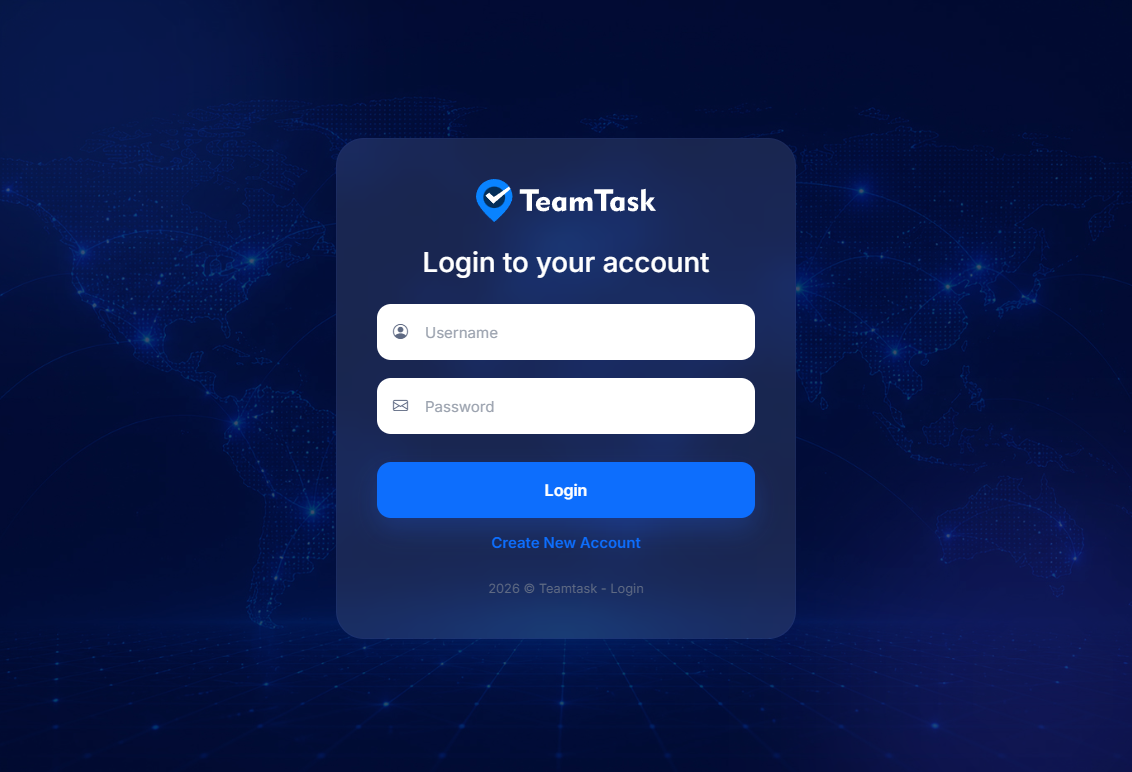
Sign in and manage your operation
After registration, the company signs in to its portal. From there, the company can manage cases, agents, reports, banks, loan purposes, case types, settings and live tracking.
Cases
Create and assign verification cases.
Agents
Add and manage field users.
Reports
Review submitted inspection reports.
Live Tracker
Monitor field activity where enabled.
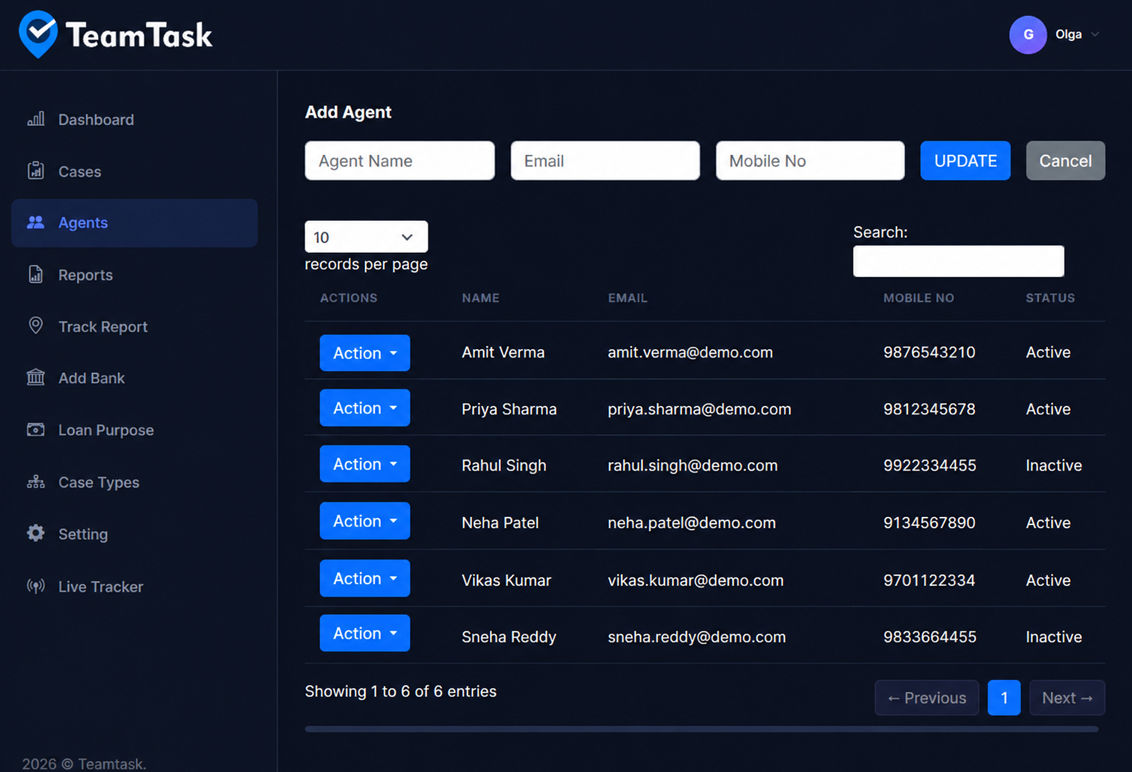
Add the field agent before they can register
The company first creates the agent record in the portal. The email ID entered here becomes the email ID the agent must use during app signup.
Portal → Agents → Add Agent
Enter Agent Name .
Enter Agent Email ID .
Enter Agent Phone Number .
Click Add .

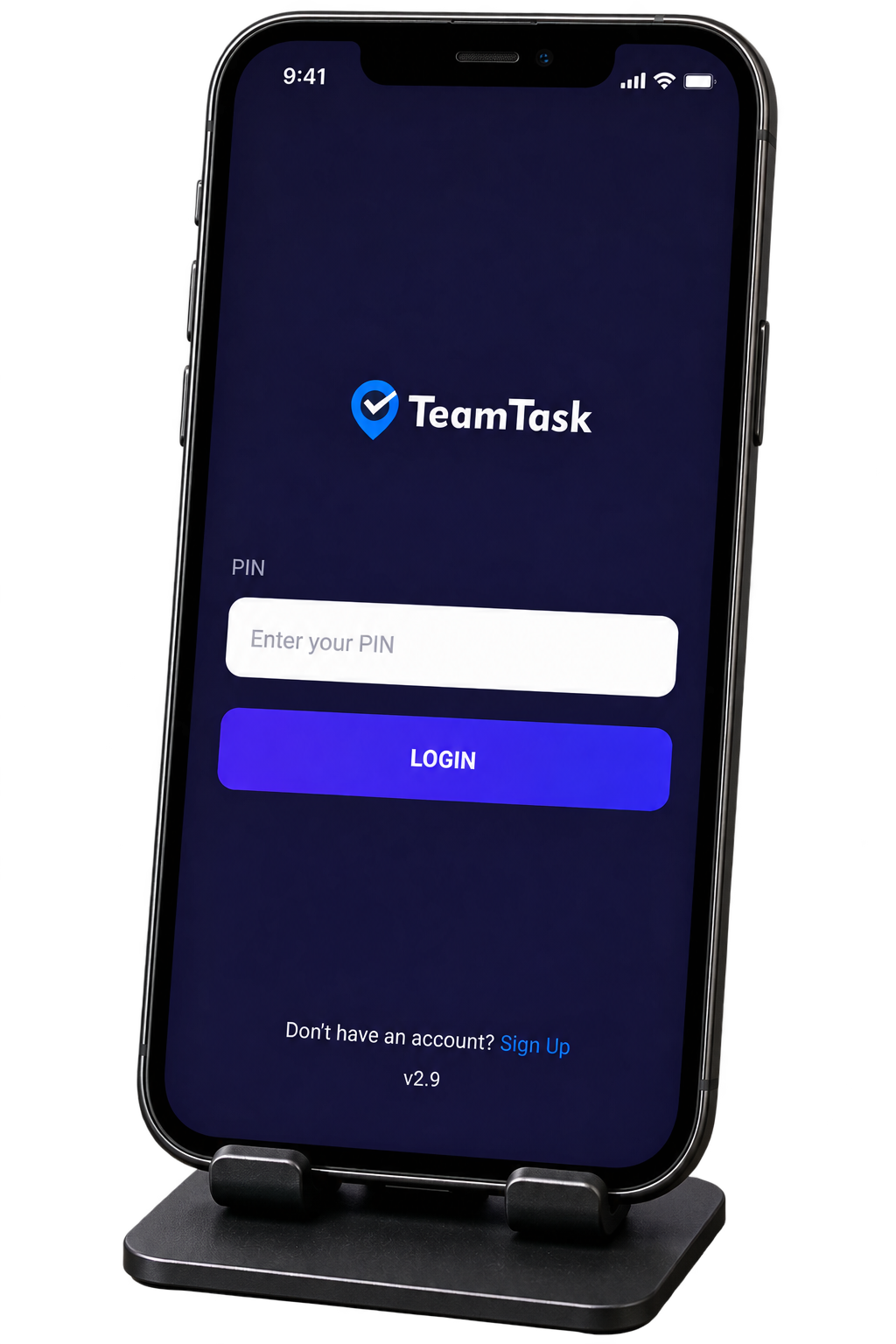
Agent signs up on the registered device
The field agent downloads the TeamTask app from the official app distribution channel and selects Sign Up to Create an Account.
Company-registered email must match the agent's signup email
The email ID entered by the company in the Agent section must be the same email used by the agent during app signup.
RESULTOnce successfully activated, the agent appears as Active in the company's portal.
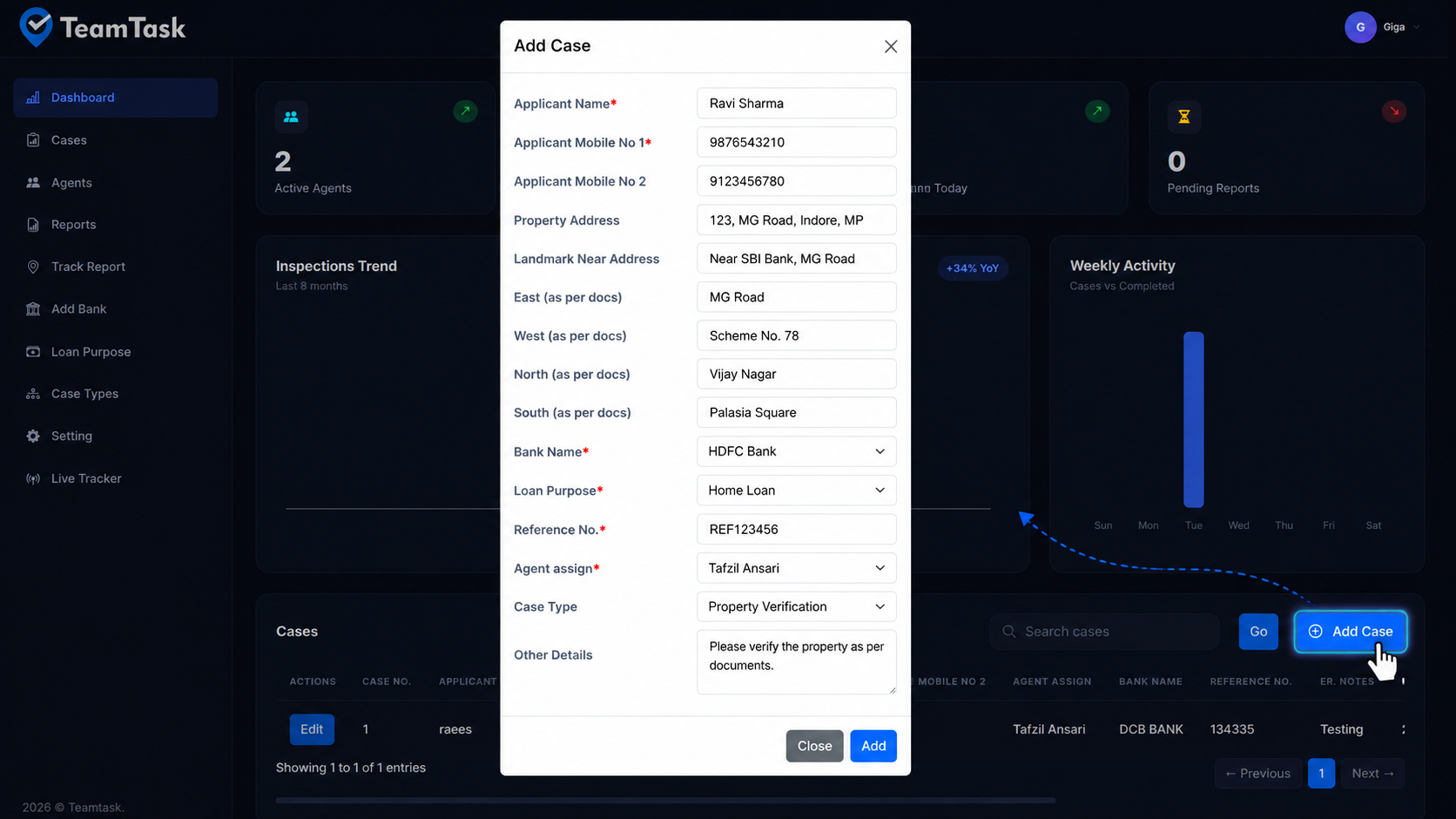
Create and assign a property verification case
The company enters the case details once and assigns the case to an active field agent.
Applicant & Contact
Applicant Name*, Mobile No 1*, Mobile No 2.
Property Details
Property Address, Landmark Near Address and boundaries as per documents.
Loan & Reference
Bank Name*, Loan Purpose*, Reference No.* and Case Type.
Agent Assignment
Select the field agent who will perform the inspection.
Other Details
Add any additional information required for the specific case.
Submit
Click Add to register the case and assign it to the selected agent.
The agent completes the assigned case from the field
Once the case is assigned, it becomes available in the agent's mobile app.
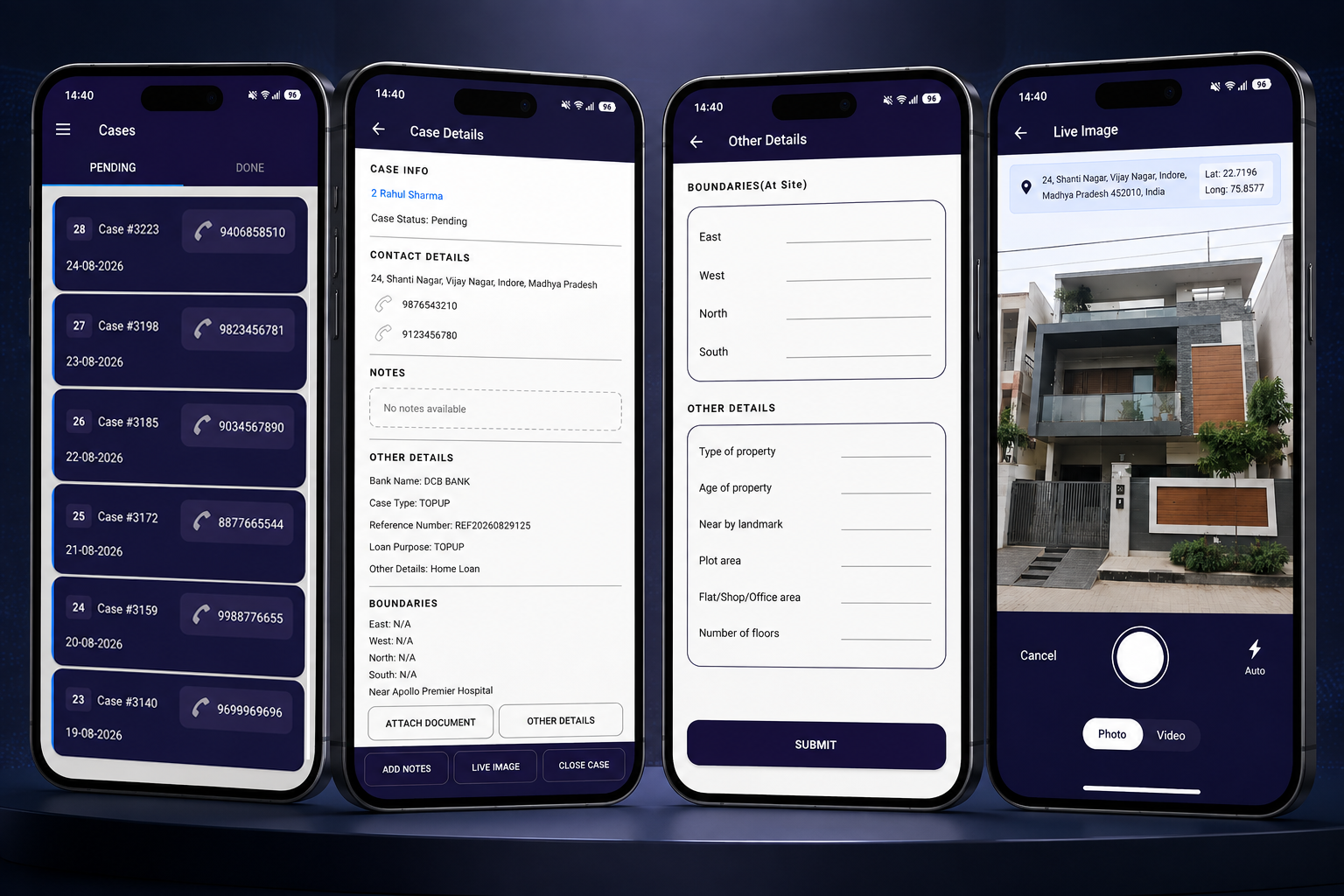
What the agent sees
Assigned case
The case appears in the Cases section with its Case ID and relevant contact information.
Case details
The agent opens the case to view the property address, applicant details and current status.
Complete required details
The agent fills the inspection information required for the assigned case.
Capture Live Image
The agent captures the required photo through the live-image workflow so the inspection evidence includes the location information captured by the app.
Submit verification
After completing the required fields and evidence, the agent submits the case.
The case remains pending until the required field work and submission are completed.
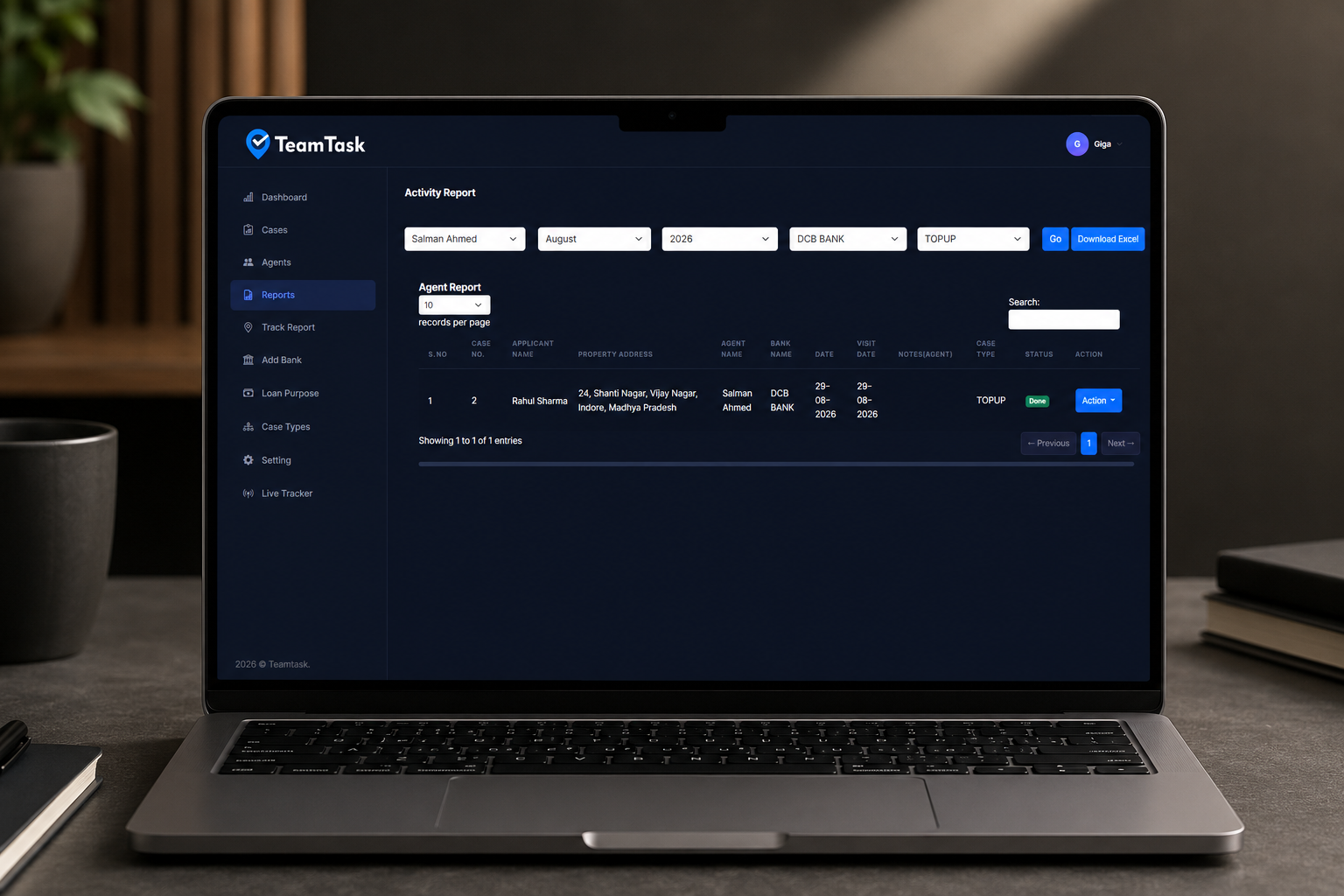
Submission reaches the company portal
After the agent submits the completed case, the company can review the submitted inspection information from the portal's reporting workflow.